

Our Auto Remediation function is available to partners using Mesh 365 and Mesh Unified. It enhances email security by scanning the inbox for 48 hours post-delivery. This feature allows for the notification or automatic removal of emails that become weaponized after their initial delivery.
For information on our Remediate feature, see this article: Remediate
Step 1: Navigate to Policy
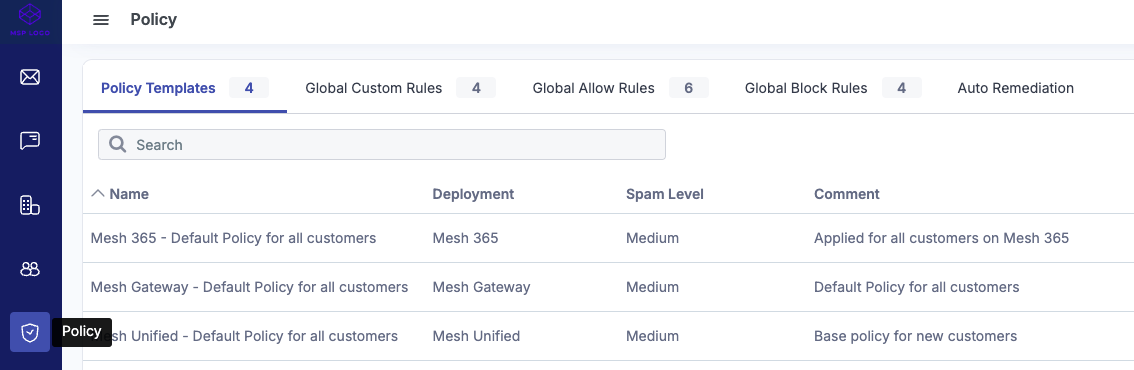
Navigate to the Policy page.
Step 2: Select Auto Remediation
Select the “Auto Remediation” tab.
Step 3: Configure settings
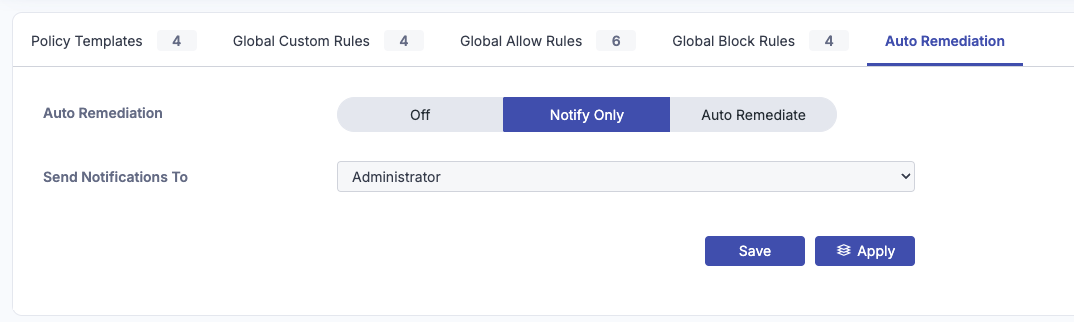
Off: This will switch off the notifications and auto remediate feature.
Notify Only: The “Notify Only” option which will send an email alert containing details about the email that should be remediated. The email will need to be manually remediated by a partner team member or administrator via the Live Email Tracker.
Auto Remediate: This will send an email alert containing details about the email and automatically remediate it from the mailbox.
Send Notifications To:
-
Administrators - Sends alert to every mailbox that has an administrator role at the customer level.
-
Partner - Sends alert to the addresses defined at MSP level.
Step 4: Apply to Customers
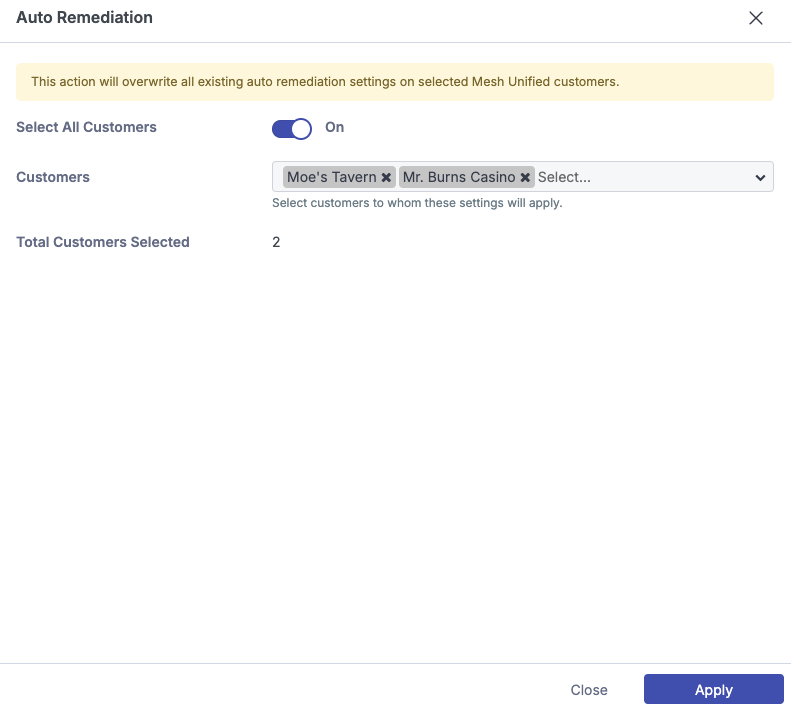
Click the apply button to push changes to customers. Applying the changes from the partner view will override the auto remediation settings in place for selected customers.
Related Articles