
TLS Encryption is only available on Mesh Gateway and Mesh Unified
This guide explains how to create a TLS Encryption rule. By default, our inbound/outbound connections use Opportunistic TLS. This means we will always try to negotiate a secure TLS connection.
If a TLS cipher cannot be agreed upon, the email is sent without encryption. While forced TLS is the most secure, Opportunistic TLS is sufficient in the majority of cases.
The TLS Encryption rule enforces this secure connection. If an email cannot establish a TLS connection, it will temporarily reject and continue to retry. If after a number of retries it cannot be established, the email will be dropped.
For inbound traffic, we will enforce TLS on both the edge and delivery connections. This covers the full path of email from both the inbound connecting client and to your email environment. For outbound traffic, this is from your email environment to the third party server.
We will also enforce TLS verification for both the inbound connection to your email environment and outbound connection when delivering to third parties. This means there needs to be a match between the MX hostname and the SSL certificate's altnames. The cert needs to be in date and signed by a public CA. Self-signed certs are not accepted.
Step 1: Navigate to the Policy page
Navigate to the Policy page and select the TLS Encryption tab.
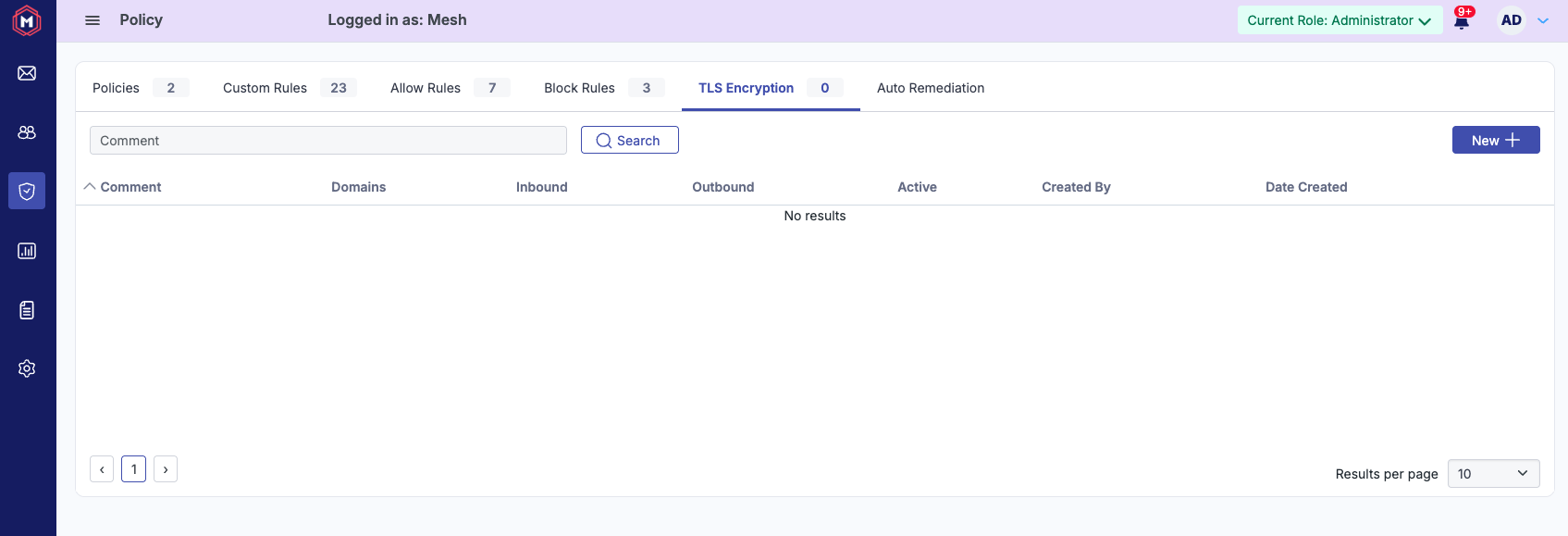
Step 2: Select New+
Select New+.
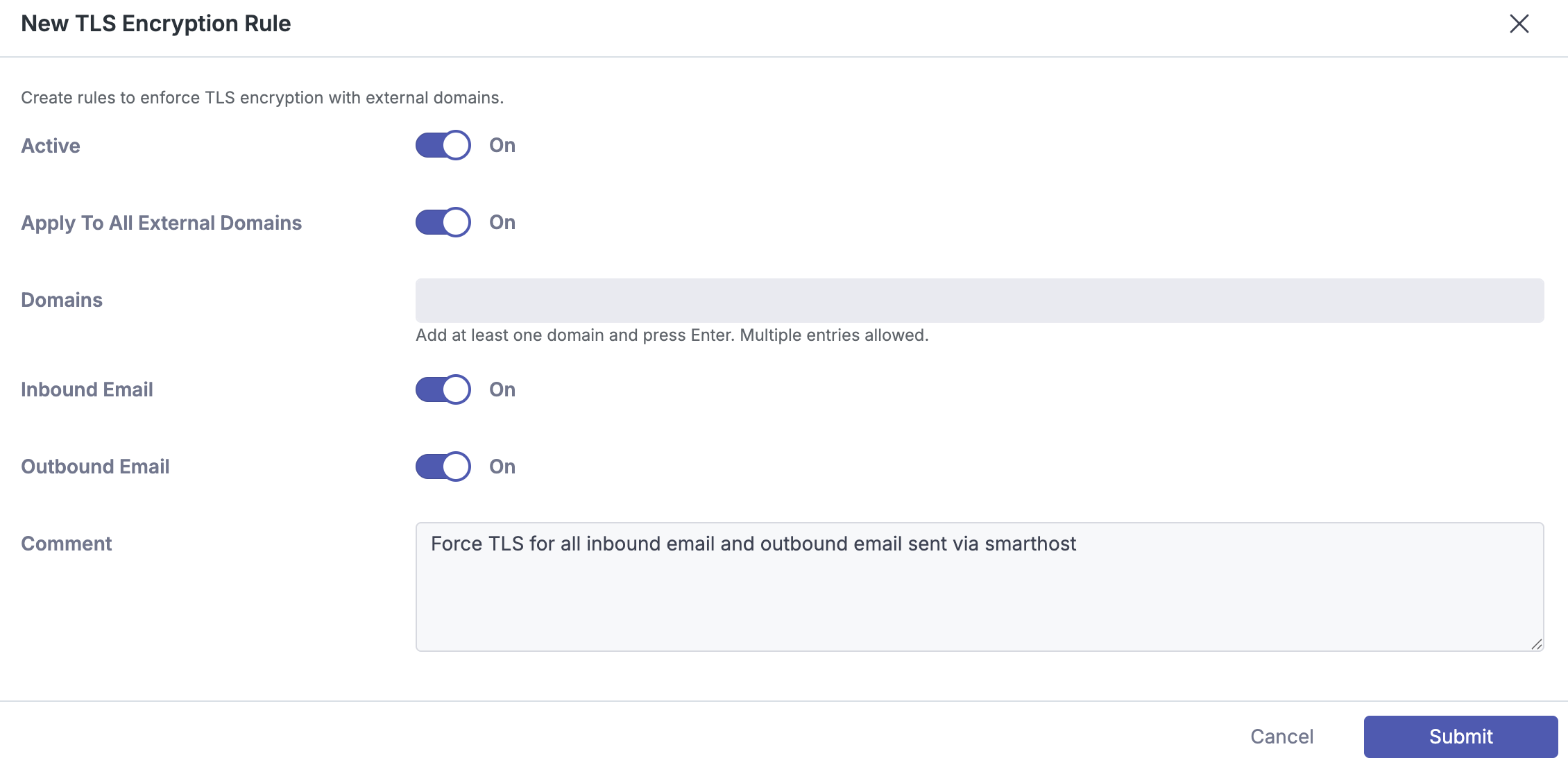
Step 3: Enter Details
-
Active: Toggle if the rule is active.
-
Apply to All External Domains: Apply the rule to all domains.
-
Domains: If “Apply to All External Domains” is not selected, a domain(s) needs to be specified.
-
Inbound Email: Enable the rule for inbound emails received via our gateway.
-
Outbound Email: Enable rule for outbound emails sent via our outbound smarthost. More info about our smarthost can be found here: Outbound Smarthost
-
Comment: Enter description of rule created.